Showing posts with label things learned. Show all posts

Sunday, December 9, 2012

Issue with iOS 6 Game Center landscape app issue fixed

Got my iPhone 5 temporarily working by connecting to WiFi while still waiting for the new SIM. First thing I did was obviously download my 2 games from App Store and have a go, but to my biggest shock, Where Is It Smart Kids Edition crashed after the splash page, how could this be??!!

Tried it in XCode and it crashed too! Error message as below:


2012-12-09 20:53:19.490 Where is it[395:907] *** Terminating app due to uncaught exception 'UIApplicationInvalidInterfaceOrientation', reason: 'Supported orientations has no common orientation with the application, and shouldAutorotate is returning YES'
*** First throw call stack:
(0x3978d3e7 0x387e6963 0x3978d307 0x33005857 0x331a9f21 0x33089cdd 0x33088f6b 0x39790ad4 0x396e828f 0x331a70f3 0x352b2e01 0x32575793 0x325755db 0x32578e45 0x397611b1 0x396d423d 0x396d40c9 0x3983033b 0x32ff1291 0xdf2d9 0x4c410)
libc++abi.dylib: terminate called throwing an exception
(lldb) 

Found this link from Stackoverflow.com which describes something similar to what I am experiencing, which only happens to iOS 6 Game Center for Apps only supporting Landscape display.  Delete the app and download from App Store again and test with Game Center logged in, and it works without problem. Problem identified!

Urh, hang on, I thought I fixed the problem in previous release already??!! Further investigation shows I missed something in my last release. And as my 3GS always has Game Center logged in, that's why it wasn't picked up during pre-release testing, damn! Definitely have to add this testing next time.

The fix is easy, before, the setup looks like this:

Just need to click on the 2 "Portrait" and "Upside Down" icons in "Supported Interface Orientations" and that fixed the problem. The setup now looks like this:


Issue fixed. Lucky the App Store still available before 20th December, hope there's not too many apps waiting for review and can still get reviewed before Christmas with the normal 7-8 days waiting time, fingers crossed...
 

Saturday, November 24, 2012

Multi-level Template display issue in iOS 6 fixed

Thanks to Nick Wilson who pointed out that my Cocos2d Multi-page template doesn't display properly in iOS 6.

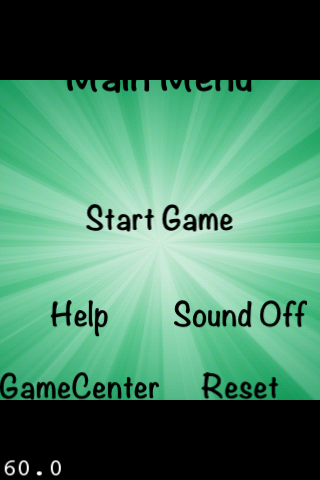
As shown below, when loaded in iOS6 it always displays in Portrait mode, and gets quite messy.


Did some research and got it working by making 2 small changes:


1) in "AppDelegate.m", inside "applicationDidFinishLaunching", insert the line highlighted in red as shown below, before "[window makeKeyAndVisible]"

// make the View Controller a child of the main window
[window addSubviewviewController.view];
window.rootViewController = viewController;
    
[window makeKeyAndVisible];

2) then in "RootViewController.m" add a new method anywhere as below:

- (NSUInteger)supportedInterfaceOrientations {
    return UIInterfaceOrientationMaskLandscape;
}


That's it. Let me know if this works for you or if you have any other problems.

Cheers.

[Update 25/11/2012]
Nick also pointed out, the other extra thing to change would be to add an iPhone 5 background image.

I have included all these and uploaded V1.02 as below, links in original post also updated. Special thanks to Nick for all the info, let me know if any one else got other excellent ideas to add.

Code: Multi-level template V1.02
Image: Image Files V1.02


// Ver 1.00 - 28/09/2012 First version
// Ver 1.01 - 24/11/2012 Fixed iOS 6 orientation issue
// Ver 1.02 - 25/11/2012 Add background image for iPhone 5 (1136x640), add version number display on Main Menu


Wednesday, October 31, 2012

You now need to submit 3 sets of screenshot!

Tried to submit an update the other day, and strangely as below, got this "Missing Screenshot" as shown below.
At the details view a slightly more helpful popup message was shown.


It took me a while to find the problem. As shown below, the middle part, we now have a new section for "iPhone 5 and iPod touch (5th ten) Screenshots". The only difference is the new screen size compared to previous version of iPhone/iPod.

Too lazy to design new ones, so I just use Inkscape to increase the width of the existing iPhone/iPod ones a bit, submit the new screenshots, and that fixed the problem. So for those who hasn't or is going to submit new app or updates, make sure you have 3 sets of screenshots ready!

Friday, October 26, 2012

Lesson learned about reducing PNG file size

Did my first submission attempt the other day after putting some new images and fixes for the iOS6 + new iPhone 5 screen size fix. But received this email saying the binary size exceeds the download limit email as below.

Definitely don't want my users to have this trouble, so I started looking around for ways to shrink/reduce some of the huge background image file size.

At first found a site (ca't find it any more?) which offers free service, just need to upload the image and it will shrink it for you. Tried a few and seems quite good, so I happily processed all the huge .PNG files. But when I tried to build the app, as below it failed with all these "CopyPNGFile" error, WTF??!!

Further research shows that site probably didn't shrink but rather convert it to ".JPG" file format but still keep the same ".PNG" file name??!!

That was very disappointing as it wasted my time!

Later found this site talking about using PhotoShop to "Posterize" the images. This time was a bit more careful, only did a few, confirmed it won't cause any of those "CopyPNGFile" error, then continue with the rest....

It was a pain, but at least I learned the lesson about how "NOT" to reduce your image file size!

Wednesday, September 26, 2012

Another issue with Appirater [with workaround]

Tried Appirater with my other game "Mespfi", which is a pure Cocoa game. Strangely as shown below, all the values stored in Localized.strings wouldn't load properly, only the key name been displayed instead.


First thought was Xcode 4.5 issue or not setup Localization properly after migrated to XCode 4.5, or the Localized.strings file problem. Tried lots of debug logging but still couldn't work out why. Then slowly back-out all the changes one by one, and found that when I disabled Appirater completely (remove the "#import "Appirater.h"" line in AppDelegate.m) then it starts working! What the...

Still not quite sure what's wrong, I then tried moving content from one of the Appirater Localized.strings file to mine and then delete it from Appirater, and it works! Looks like some sort of conflict betweens the new Localized.strings files from Appirater with my existing ones? I deleted all those extra language files which my App doesn't support, and merge the rest into mine, and all works ok after that...

Tuesday, September 25, 2012

Localisation in XCode 4.5 drives me crazy [Fixed]

Don't know why, after upgraded to XCode 4.5, testing localisation becomes a nightmare...

First I was stuck due to can't find the plus/minus buttons, finally found that it's been relocated after XCode 4.4, as I was on Xcode 4.3.3 before the upgrade, so wasn't aware about this.

Then found that if I change the language in simulator to Spanish, when it runs it's still in English. Deleted app from simulator, clean and re-run again, it works, then tried again, back to English again. Similar problem happens with the other languages too... I start wondering is adding multiple language support really worth the effort as I felt getting crazy after all these confusing, almost random test results...

Luckily, I found this work around by "VictorT". Listed below for your reference. I think it's adding extra step to copy the localizable.strings file over and to be honest don't really understand why, but most importantly - this fixed my problem!

  1. Remove application from device
  2. Select root node of project tree to get project's properties
  3. Select "Build Phases" tab
  4. Click "Add build phase" and select "Copy files"
  5. Select "Resources" in "Copy files" view
  6. Add Localizable.strings file
  7. Perform "Clean" for the project
  8. "Build and Run"

Issue with Appirater [With workaround]

I was adding Appirater to my game, however found a problem.

It works perfectly with iPad, as shown below:

However, when it's in iPhone, probably due to it's running in Landscape mode, there wasn't sufficient space to fit in both the title plus the message, therefore the message got cut-off...

I tried shorten the message, but then it would be very confusing. After some research, I found this post by Himanshu Sharma about how to change the font size, which is the most simplest solution for me. There are also others talking about creating fully customised alert view, but I think that's a bit too much for me. I just need a simple workaround to fit in my messages.

After a few adjustments, I shorten the message a bit, adjusted the font size to be smaller, remove the message body (use message as title), and got it sort of working as below. For iPad, I just leave it as it is.


If you look at the screen dump on Appirater site, you will see that it's in Portrait mode, that's why it can display the full message on iPhone.

If your game is in Landscape like mine, hope you find this work-around helpful!

Please let me know if there's any better way to fix this issue, as I really want the whole message title and body to be properly displayed in both iPad and iPhone without any workaround if possible.

Problem with TPG??

Tried to logon to my blog from home ADSL2 network, strangely Safari shows a blank screen and hung for a long time. Tried FireFox and this is what I got:

"Server not found" error for the top half, then a huge blue strip, then part of my last post at the bottom. What the??!!

Tried on my iPhone, and it loads up straight away!? Very strange.

I unplugged the network cable, use my iPhone's personal hotspot and everything works!

Must be problem with my ISP TPG and found all sites related to "xxx.blogspot.com" have the same problem. My iPhone uses Telstra network and has no issue browsing all sites. Looks like have to use my iPhone's "more expensive and slow" connection for tonight until issue resolved...

Lucky I have a backup, otherwise would be stuffed.

Friday, September 21, 2012

iPhone 3GS ARMv7 issue with XCode 4.5 fixed!

A not-so-happy start
At first I was a bit depressed today, as both my apps failed to compile in Xcode 4.5, plus from yesterday's bad experience - Xcode 4.5 won't generate the ARMv6 code to run on my old 3GS, then found old Xcode 4.3.3 disappeared, only have much older 4.2 left, looks like I might need to keep 2 versions of code !!??

What a mess...

Quickly worked out an action plan - I am going to uninstall Xcode 4.5, install Xcode 4.3 (or 4.4), then install Xcode 4.5 on a different folder - hope that they can co-exist. So that at least I can have the latest 4.3 or 4.4 to test the app on my 3GS, and then test on iOS 6/iPhone 5 (4 inch retina) simulator using Xcode 4.5. That's the best work around I can think of - until I got a replacing device (iPhone 5?) to test with... Hopefully very soon...

New discovery
Then while looking for further details about that ARMv7 error, I saw "PSA: Do not release ARMv7s code until you have tested it" from "Wandering Coder" talking about:

...when ARMv7 was introduced with the iPhone 3GS, ARMv6 kept being the default and there was an added “optimized” setting that built for but ARMv6 and ARMv7 if you wanted it...

Wait, what? ARMv7 was introduced with iPhone 3GS! So it's "iPhone 3G" that doesn't support ARMv7, my iPhone 3GS should be able to run ARMv7 code! But then why did Xcode 4.5 refuse to do it and complaints about ARMv7??

Further investigation...
Have a closer look at the error message again:


ld: file is universal (3 slices) but does not contain a(n) armv7s slice: /Users/qq/Documents/iOS.Dev.Projects/Where is it ?/Buzz.a for architecture armv7s
clang: error: linker command failed with exit code 1 (use -v to see invocation)


Also read that article the second time, slowly. So it's actually complaining about "ARMv7s", not "ARMv7". And looks like "ARMv7" and "ARMv7s" (in the error message) are actually 2 different things!

Problem fixed
Following the article, I checked the "Architectures" values under "Build Settings", and as below, it says "Standard (armv7, armv7s)".


If I double click to modify the value, as shown below, it changed to "$(ARCHS_STANDARD_32_BIT)", no idea what does that mean...

I captured a screen dump as backup, removed the value and added new one "armv7" without the "s", and it works! Xcode 4.5 can now compile my app and install it on my 3GS successfully, yeah!

Huston, we got another problem...
The app starts up on the phone without problem, the splash page loaded, and then it crashed! WTF ##@$$%^&*(!!!...

Error message as below:


2012-09-21 17:32:07.425 Where is it[747:907] *** Terminating app due to uncaught exception 'UIApplicationInvalidInterfaceOrientation', reason: 'Supported orientations has no common orientation with the application, and shouldAutorotate is returning YES'
*** First throw call stack:
(0x359c52a3 0x3a3db97f 0x359c51c5 0x343d9897 0x3457e579 0x3445dd45 0x3445cfcf 0x359c89c4 0x3591ffeb 0x3457b733 0x3a7fbd2d 0x316c211f 0x316c14b7 0x316c2dcb 0x35998f3b 0x3590bebd 0x3590bd49 0x358392eb 0x343c5301 0xc0481 0x2d588)
libc++abi.dylib: terminate called throwing an exception 


Spent a lot of time adding different debug/logging but still couldn't workout what's wrong. Then googled the last line "libc++abi.dylib", also couldn't find anything related....

I almost gave up.... Then tried googling the "UIApplicationInvalidInterfaceOrientation" and found a work around!!

Problem #2 also fixed!
I followed the instructions:
1) enable all orientations in project summary
2) as my project uses Cocos2D, and don't have that "application:supportedInterfaceOrientationsForWindow", so nothing to remove
3) Add the extra code below in the RootViewController.m

- (NSUInteger)supportedInterfaceOrientations {
return UIInterfaceOrientationMaskLandscape;
}

And it works! Yeah!

I guess I still have to switch back to "ARMv7s" and my old 3GS has to be replaced sooner and later any way, but at least I can hang on to it for a little longer while fixing both my apps for iOS6/iPhone 5!!

And I understand that once I switched to "ARMv7s" all the third party libraries has to be in "ARMv7s" too! Don't want to think about that now, already got lots of things to worry about that....

At least one major issue resolved, what a relieve...

[Update 22/Sep/2012]
You can find some other helpful info in Hacking up an armv7s library by Matt Galloway

Sunday, September 16, 2012

GMail issue with iPhone built-in Mail app fixed

Spent some time testing different GMail settings, even installed this App called "Google Authenticator" to scan a QR Code (which is quite cool) - but this doesn't help at all. In the end it's this thing called "Application Specific Password" that fixed the problem.

Ok, if you provided your mobile number to GMail, you will have this security function called "2-step verification" enabled. Let me know if you got better idea, but so far the only way I can get GMail working with the iPhone built-in Mail app is by "Application Specific Password".

Any way, one annoying issue resolved... Move on to the next one...

Thursday, September 13, 2012

Never save sensitive information to NSUserDefaults

Just read something important from this "Basic Security in iOS 5" article on Ray Wenderlich's site that:

never save sensitive information to NSUserDefaults – these values are stored in PLAIN TEXT (i.e. just like this blog post) for all to see (and is also saved inside of your application bundle). Be mindful of what you put in there.

Which is quite interesting as I never know it's stored in plain text and also saved inside application bundle.

Wednesday, September 12, 2012

Applications are expected to have a root view controller at the end of application launch

Was testing the example game that comes with Nextpeer, and found this line in the log:


2012-09-11 23:24:19.571 ExampleGame[9101:15b03] cocos2d: Frame interval: 1
2012-09-11 23:24:19.573 ExampleGame[9101:15b03] Using Nextpeer version (1.2.10). https://api.nextpeer.com/v2/sdk
2012-09-11 23:24:19.857 ExampleGame[9101:15b03] Applications are expected to have a root view controller at the end of application launch
2012-09-11 23:24:19.857 ExampleGame[9101:15b03] cocos2d: surface size: 320x480
2012-09-11 23:24:22.441 ExampleGame[9101:15b03] cocos2d: Frame interval: 15
2012-09-11 23:24:29.960 ExampleGame[9101:15b03] cocos2d: Frame interval: 1


As I never seen this before, asked Daniel/Nextpeer and he confirmed it's not related to Nextpeer, but rather "has to do with how Cocos2D manages the UIWindow and root view controller objects for game. Nothing too serious :)"

Just not sure is Cocos2D trying to tell us something is not right? Compared to my other code, it seems it's because there's no RootViewController been used in the AppDelegate that's causing this to happen. As the app still works perfectly - which proves that Cocos2D can run without a RootViewController, so we probably can ignore that.

Sunday, September 9, 2012

Creating Git repository for existing XCode projects

This problem has been puzzling me for a while...

Scenario 1:
You started a simple project just for a quick/simple test.
XCode gives you option to "Create local git repository for this project", and for some reason you didn't/forgot to tick it...

After you spent some time on it, your simple proof-of-concept project seems to worth a lot more now and you want to add it to the source control. Ooops, how do you do that again??!! You tried every possible options under "File -> Source Control" menu but none of them works, what the....$%#@!

I guess it's mainly your fault for not creating the repository at the beginning, but, but, but, wouldn't it be nice if Apple can add an option into XCode to make it easier to add existing projects to the the source control?

Scenario 2:
There's another scenario - which happens to me quite a lot - you downloaded something from the web, you "heavily" modified it (it's mine now, mine mine mine! Ha ha ha....), and again, later wants to add it to source control and..... stuck again!

Finally found a solution today, thanks to this link by Ash Furrow, I learned that you have to:

(a) create an empty repository by open a terminal, go to your project directory and run the following commands:

git init
git add .
git commit -m "Initial commit"

(b) after that, follow the following steps (you may compress the whole project into a ".gz" file first if you worried about loosing anything...)


  1. Move your existing project folder to your desktop.
  2. Make a new, empty project in Xcode with the same name as your project. Make sure the box for using a .git repo is selected.
  3. Close Xcode.
  4. Copy all files from the project folder on your desktop to the new project folder Xcode created.
  5. Double-click the project file.
  6. You'll now need to add all the files to the source control since (they'll all have question marks beside them, shown right).

And you are done! Yeah, problem solved!

Wednesday, June 13, 2012

How to capture Exception while debugging

In Canberra today, doing training course (no, not iOS development related unfortunately :-P )....

Found this handy post from iPhone Development Blog as below talking about how to capture Exception while debugging. This would surely helps with all those weired exceptions!

Capture Exception While Debugging

Monday, May 21, 2012

Things learned about multi-language support (localization)

As I mentioned in previous post, like to share with you a few things I learned about multi-language support (localization) when I worked on V1.01 of Where Is It - Smart Kids Edition.


1. If you want to do it, make sure you got all the settings done in first version.

I learned this lesson in a painful way - as I originally planned about it, and created a "Localizable.strings" in Version 1.0 and put in all the key/string pairs in it, but then I totally forgotten about clicking on "+" to create localized version of the file. Therefore when I started adding in English, Spanish and the 2 Chinese versions in Version 1.01, I got a few problems:

a) the file location has changed. In Ver 1.0, the file is in the same directory as others. In Ver 1.01, each "Localizable.strings" file is located in it's own sub-directory (one each language). During testing, I found that if I installed Ver 1.0 and then upgrade to Ver 1.01, it will NOT pick up any of the different language versions, everything still in English. The only fix is to delete the app and then re-install Ver 1.01, which is not a good user experience.

b) I added a few extra key/string pairs in Ver 1.01. Because those upgraded ones will only see the Ver 1.0 file, those new ones were not correctly displayed. For example, I have these 2 new ones added in Ver 1.01. Those who upgraded from Ver 1.0, will get "AppTitle" and "AppTitleSub" displayed instead of the actual string defined.


"AppTitle" = "Where is it?";
"AppTitleSub" = "Smart Kids Ed";


2. Different width problem.

Make sure you check each and every string display in all screens for different languages. Due to difference in length of each string, although you may set the label to auto adjust font size to fit width as below, it's better if you actually check it to make it doesn't get chopped off, go beyond screen width, too small, ...etc.


[mLabel setAdjustsFontSizeToFitWidth:YES];


3. Custom font problem.

I added a few special custom fonts at the beginning, but I found that most fonts only support standard English alphabets. As shown below in first screen below for Spanish version, instead of "Puntuación", that special "ó" is shown as a blank box, and quite a few others as well. The second one for Chinese is even worse, lost everything. In the end, I have to switch back to standard Apple system fonts. But as I am also supporting pre iOS5 versions, have to add extra logic to use a "nicer" font in iOS5, and then different one for older iOS version.


4. Issue with Simulator

I also found that during testing, if you start a test run in Simulator straight from Xcode, then click "Home" to stop it, and then change language on the Simulator, quite frequently it will hung and crash quite badly. The work around I found, is to make sure it's stopped in Xcode first, switch to Simulator to change the language, then switch back to Xcode to start the run.
Also occasionally, I have to select "Clean" to clear everything for the build to pick up the changed language, which is a bit annoying...


5. Hard to tell whether it's right or wrong unless you understand the language.

Another problem I found is, because I don't understand the language, I have absolutely no idea whether it's correct or not - specially when I have to make changes to the string file. For example, due to screen width limitation, I have to merge a few lines and split a few others. I accidentally missed an "o" during the copy-and-paste, and I got absolutely no idea about it until been picked up by others about a week later. Luckily that was before I submit to Apple for approval...

If you need help with translation, better find someone who can speak/read the language. Although Google translation is free, from my experience, the quality is not that accurate sometimes, so don't fully rely on it. There's a web site called iCanLocalize which provides professional translation service, but it's not free.


6. Don't forget about the content in iTunes Connect

Now that you spent the effort in putting in multi-language support for your app. Don't forget to add those different languages in your iTunes Connect setting too! The descriptions, the screen captures, ...etc, not a simple task... I have to admit I don't have the time to finish that part myself :-( ....


7. Don't forget about the culture differences

This is actually from another game I am currently working on. I found that I made a dumb, fundamental mistake by trying to add multi-language support to a game which requires players to work on things based on the 26 English alphabets.... I later realised Spanish or German or French speaking people's alphabet would be quite different from the English one, right? Then what's of point of supporting it in non-English language? Silly me....


So based on above, although Apple has made it quite easy to support multi-language in Xcode, there's still quite a lot of effort involved. To make your life easier,  make sure you try it a few times (try this tutorial) and arrange for all required resources before you start integrating multi-language support in your app.

Hope you find these information helpful and let me know if you have other things to share.  Cheers!

[Update 22/05/2012]
Almost forgotten another one:

8. Game Center content

Inside Game Center achievement and leaderboard setup (also through iTunes Connect), there's also content that can be in multiple languages. So you might have to look into that too.

[Update 13/09/2012]
There's also other stuffs like Storyboard in iOS5, as I never use Storyboard, don't really know much about it. Please have a look at this post for other related info.

Wednesday, April 11, 2012

Have you started using Source Control in XCode 4?

I always know the importance of Source Control. But I always got hundreds of excuses for doing it tomorrow, or put it down in the bottom of the to do list. Until I accidentally deleted a full working project today.....

Lucky I saved it back from Trash, but the shock still gave me high blood pressure for at least an hour or two.....

It could take a while to setup and understand the concept if you never done it before, so would suggest you to try it with a small project first. Make sure you are clear with all the required steps first before putting your major stuffs in there.

Have a look at this Apple document, and try to do some search on the net.

Good luck and hope you won't be so un-careful as me, but I surely learned the lesson in the hard way...

The 10000 hour rule

Saw this post by Jeff Vogel talking about "The 10000 hour rule" and felt quite touched. If you search on the net and you will find lots of info about that too.

I have copied the quote from Ira Glass below, hope you enjoy it as I do. You got to have faith with what you are doing. Although your 1st X Apps/Games won't be the best seller or Top 25, the experience is helping you to get closer to that. Just keep working on it, do a lot of work and never give up!

Monday, April 9, 2012

Don't rotate or scale your touchable Sprite in Cocos2D,

Got stuck with a bug for almost 2 weeks.

What happened was, I tried to rotate and scale down some sprites. Problem is, I found that all the touchable Sprites which used to work perfectly before the rotate and scale down won't respond to touches that were around top or bottom 15-20% area of the Sprite. That is, users now have to tap at the middle of the Sprite - which is very very very annoying.

After all sort of troubleshooting, I finally worked out it's because of the Sprites I am using. Unfortunately, been a developer who's not very good with designing and graphic :-(, plus a bit lazy (sometimes). To avoid the hassle of redrawing all the Sprites, I simply used the built-in Cocos2D function to rotate and scale down all the Sprites and that is where all the problem began. Looks like if you rotate or scale down your Sprites, somehow Cocos2D won't respond to touches on the top/bottom 15-20% of the Sprite. My test shows if I supplied extra set of properly rotated/scaled images, then everything works as expected - mystery solved! But what a pain as I now need another set of Sprite! ^%#%#@#$@%

Only if Cocos2D is smart enough to adjust all the touch function properly according to the scale/rotation been made to the Sprites, is this qualified to file it as a new bug, or is it a "known feature"?

Well the good news is, for those Sprites that are not touchable, you can still rotate/scale them as required.

Saturday, March 10, 2012

Be ware of issue with Microsoft Word

Was following the example by Sean Berry on Ray Wenderlich's site about how to Localize an iPhone app, and found it quite interesting.

I was playing around with Google translate on my PC to translate a few text messages to Japanese. Urh... no, I don't understand anything about Japanese, so I got absolutely no idea what it says...

As Notepad can't copy those special characters, I just copy and paste it into a Microsoft Word document.

However, after I copied the file to Xcode on my Mac, I was then stuck with this strange error for a while: "Validation failed: The data couldn't be read because it has been corrupted." What the???!!!

I tried a few things (remove a few lines here and there) and finally confirmed it's something to do with these few lines... Then stared at it for a long time as I got no idea what those characters said...

Finally, I noticed the colour difference with the part as highlighted below. The ending semi-column should be in black colour, not red. Why? because bloody Microsoft Word converts the double quotes to special characters that Xcode can't recognise! ^$$@$%#^%%&*!

Wednesday, February 29, 2012

Not comfortable with result of UIDeviceOrientationIsLandscape([UIDevice currentDevice].orientation)

Found that if I use the following method to check if the device orientation has changed, the result is not quite accurate.


UIDeviceOrientationIsLandscape([UIDevice currentDevice].orientation)


Specially when you lay the iPhone/iPad down flat on the table, then slightly lift one side up and down. When you reached certain angle the result will change, specially bad with the iPad.

After a few trial, I found the "self.view.bounds.size" is actually more accurate in indicating whether it's in landscape of portrait mode, and have to combine the two.

Any one has similar experience or better idea?