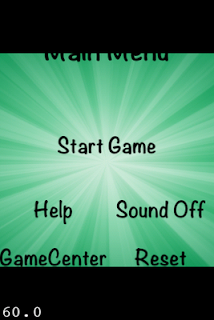
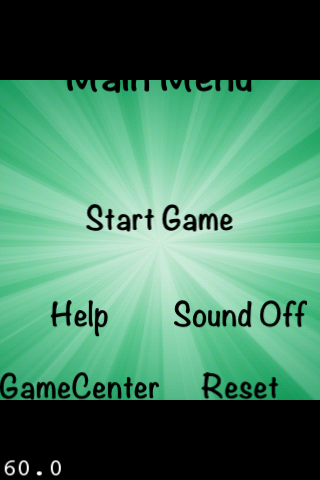
Thanks to Nick Wilson who pointed out that my Cocos2d Multi-page template doesn't display properly in iOS 6.
As shown below, when loaded in iOS6 it always displays in Portrait mode, and gets quite messy.
Did some research and got it working by making 2 small changes:
1) in "AppDelegate.m", inside "applicationDidFinishLaunching", insert the line highlighted in red as shown below, before "[window makeKeyAndVisible]"
// make the View Controller a child of the main window
[windowaddSubview: viewController.view];
window.rootViewController = viewController;
[windowmakeKeyAndVisible];
2) then in "RootViewController.m" add a new method anywhere as below:
- (NSUInteger)supportedInterfaceOrientations {
returnUIInterfaceOrientationMaskLandscape;
}
That's it. Let me know if this works for you or if you have any other problems.
Cheers.
[Update 25/11/2012] Nick also pointed out, the other extra thing to change would be to add an iPhone 5 background image.
I have included all these and uploaded V1.02 as below, links in original post also updated. Special thanks to Nick for all the info, let me know if any one else got other excellent ideas to add.
As I never seen this before, asked Daniel/Nextpeer and he confirmed it's not related to Nextpeer, but rather "has to do with how Cocos2D manages the UIWindow and root view controller objects for game. Nothing too serious :)"
Just not sure is Cocos2D trying to tell us something is not right? Compared to my other code, it seems it's because there's no RootViewController been used in the AppDelegate that's causing this to happen. As the app still works perfectly - which proves that Cocos2D can run without a RootViewController, so we probably can ignore that.
At the beginning.... At first I was working on a proof of concept game, which is multi-levelled and I started thinking about how to create an "Angry Bird" style multi-level sliding grid. To avoid reinventing the wheel, I found this page from Apptinker blog which adds extra labelling for each level icons on top of Brandon Reynold's excellent piece of work (video shown below).
Some extras on top .... However, after some testings, I found a few things that can be further improved:
(1) It's for iPhone only, doesn't cover iPad or Universal projects that well ==> need to check device type and use device specific parameters/images
(2) All level icons are clickable, which might not be very practical. As normally at the beginning, only the first one or few levels are enabled, rest all locked. Player has to pass the level (or pay extra money or click on ads or install other apps, ...etc to get credits) to unlock other levels. So it should have 2 types of level icons - locked and unlocked, and only those unlocked ones are clickable. ==> use different icons for locked/unlocked level types, plus extra field to keep track if each level is locked or not.
(3) Say if there are 3 x 6 level icons per page, and your total number of levels (e.g. 45) is not the multiples of 18 (e.g. 18, 36, 54, 72), scrolling to the last page (using 45 as example, that will be page 3 of clickable level icons) doesn't work. ==> add extra invisible icons (opacity=0) at the end to make the total number of all level icons equivalent to multiples of the number of total icons per page (45 + 9 invisible ones = 54 in total)
(4) From the level select page, can not return back to main menu page (the page before this page) ==> add extra HUD (Heads Up Display) layer with a home icon
Issues resolved, yeah! I spent some time and finally got all these issues resolved. Also exchanged a few emails with readers about displaying splash page and localisation (supporting multiple languages) while working on this.
A light bulb appeared on my head, and.... I suddenly realised there's a need for a simple multi-level template which covers: (a) splash page, (b) main menu, (c) level sliding grid, (d) a simple popup at the end of each level, ==> if passed, unlock next level and show option to proceed to next level, replay same level, home or back to level select screen ==> if failed, only show option to replay same level, home to back to level select screen (e) audio (one at splash page startup, one as looping background, a few sound effects, ...etc) (f) localisation (for icon name and messages)
This should be handy to beginners like me, as you then only need to focus on the main game design, fit it into this template (with a bit of work of course), and you got a fully functioning game!
Wonder if there's currently any open source project available for this kind of work? Let me know if you are aware of any!!
Mission accomplished! I got the first draft of this simple Universal project template sort of completed (link to source available far, far below), some features listed below: (1) uses Cocos2d V1 (2) include script to run TexturePacker to build 4 ".pvr.ccz" format sprite sheets (iPad SD/HD and iPhone SD/HD) from 2 directories (containing images for iPad HD and iPhone HD) on each build ==> Note that if you only have the free version, you need 4 directories (one each) and have to use other file format which is slower and less efficient (3) for localisation, includes English, Spanish, Traditional Chinese, Simplified Chinese and Japanese at the moment (4) keeps track of top score, date top score achieved and number of stars received for each level (stored in NSUserDefaults)
Also have an empty link for Help and another one for GameCenter which I haven't got time to finish yet, will look at that later...
So, what does it look like? Some screen dumps and brief description first... The application icon name, changes according to the language setting of the device. As the screen below shows, it's defined by "CFBundleDisplayName" inside file "InfoPlist.strings" and there's one for every supported language. Yes, your app can be called "XYZ" in Xcode, "ABC" in App Store, and shows "STU" at the bottom of icon when installed on users' device, they don't have to be the same.
Next, when the app starts, it shows the splash page. All the label/title content read from "Localizable.strings" file. You should get the idea now. The splash page code ("LoadingScene") also plays a short audio, you can use it to announce your company name or some other stuff to greet your users.
Note 1: with the Spanish version on upper right hand side, you can see a common problem - the label is too wide and need to reduce the font size to fix that! Please refer to this post of mine for further info: "Things learned about multi-language" Note 2: the images with orange background are captured from iPad 2, the green ones are from iPhone 3GS. Note 3: the blue popup in the middle is because I wasn't signed in to GameCenter, can ignore that.
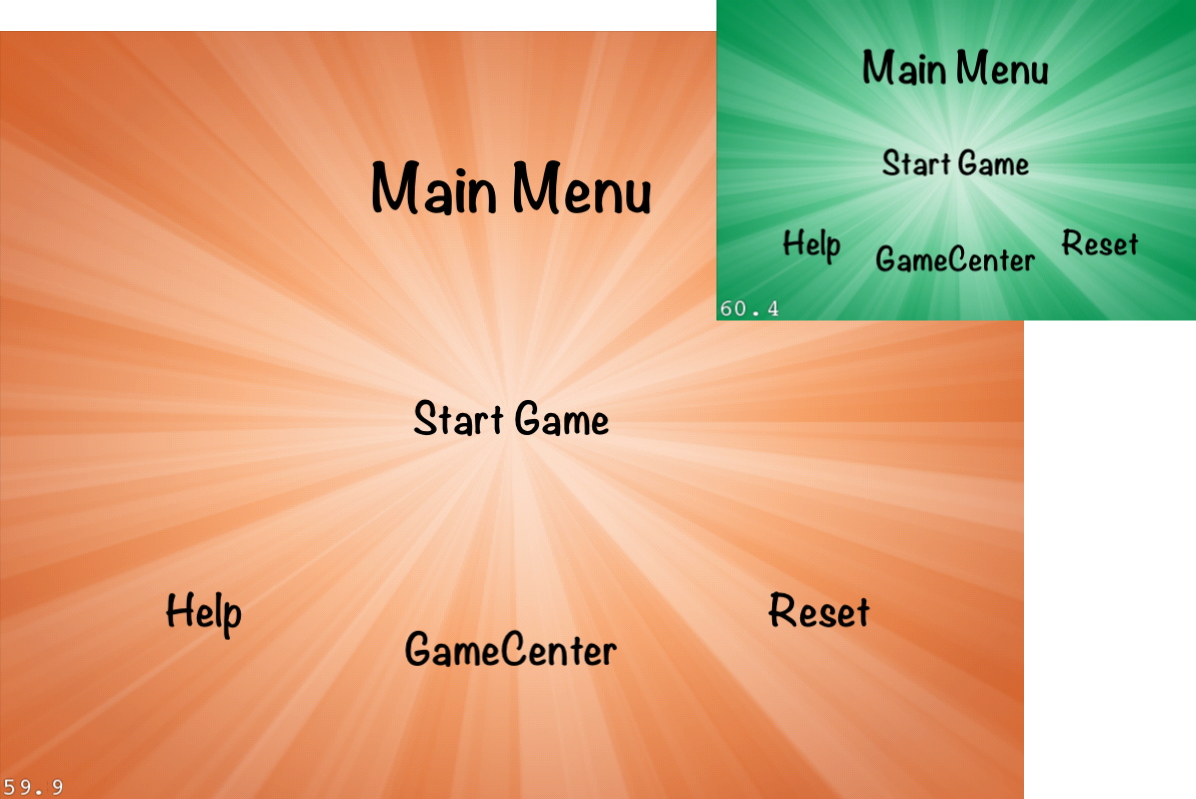
Next is the main page, a bit too simple right? Yes, because I expect you to completely replace this page with a proper one for your game! (Note: latest version in the video was updated with extra Sound On/Off option) "Help" and "GameCenter" not working yet, "Start Game" will bring you to the level select screen, "Reset" resets all the level data.
Next, the most important part thast most of you would be interested with - the level select screen (sliding menu grid). As you can see the "home" button floats in the HUD layer, doesn't move when you slide between different pages, and only 1st level was unlocked initially. Second one shows the last page - with 9 invisible ones at the back.
Finally the GameLayer - as you are also supposed to replace this with your own game, I quickly built a simply single page test game layer based on Ray Wenderlich's Cocos2D button tutorial to simulate the result of a real game. You can use the lower right hand side buttons to specify how many stars current level received, use the "+", "-" and 3 buttons above to change the score, and click on the middle 2 to pass or fail the game, very simple.
There will be 2 different popups when game ended depending on whether you passed or failed, as shown below:
Don't like the images/screen design? Me too... Well, I am a developer, not designer... I am only providing a fully functioning "template", would suggest you to get some proper designer to do all the nice looking stuffs if you don't like mine, you are welcomed to change it!!
Short demo video For those who like to see how it works, a short demo video covering both iPhone and iPad, as it's an universal project. Oops, as it's screen capture by QuickTime, unfortunately no sound... But if you download the source code and run from your Mac, you will get all the sound and background music.
Where is the code?!! Any copyright/left requirement thing? I only have 2 simple requirements:
1) You have to download both my games and play both of them for a few times (help me to help you more!!) (a) Where Is It - Smart Kids Edition and (b) Mespfi
2) Optionally, please credit me or provide a link back to this blog either in your App or in your blog.
That's it, simple right? After that you are welcomed to use and change the code in which ever way that suites your needs.
Finally, you can click here (Updated V1.02)(Old Version 1.0 click here) to download the code. When you first run it, TexturePacker will report some errors (as it couldn't find the image files to process), but as the sprite sheets already included it will still work.
If you want to update any images (or fix that error), first you need to download the images, store it somewhere on your local drive, then modify "PackTextures.sh" so that all the path settings match where the images were located. And if you changed any of the image file names, please update the settings in "GameData.h" so that it can be picked up correctly.
I have put most of the changeable settings at the top of "GameData.h", have a look at that first.
Finally, please let me know if you have any problem, any further information required, or if you found any bug or have better ways to improve the project, all comments welcomed!
Thanks, and happy coding!
[Update 24/11/2012] Thanks to Nick Wilson who pointed out that there's problem when this template runs in iOS 6. I have created a fix, please see this post for further details.
[Update 25/11/2012] Updated links to source/images to V1.02, history info:
// Ver 1.00 - 28/09/2012 First version
// Ver 1.01 - 24/11/2012 Fixed iOS 6 orientation issue
// Ver 1.02 - 25/11/2012 Add background image for iPhone 5 (1136x640), add version number display on Main Menu
What happened was, I tried to rotate and scale down some sprites. Problem is, I found that all the touchable Sprites which used to work perfectly before the rotate and scale down won't respond to touches that were around top or bottom 15-20% area of the Sprite. That is, users now have to tap at the middle of the Sprite - which is very very very annoying.
After all sort of troubleshooting, I finally worked out it's because of the Sprites I am using. Unfortunately, been a developer who's not very good with designing and graphic :-(, plus a bit lazy (sometimes). To avoid the hassle of redrawing all the Sprites, I simply used the built-in Cocos2D function to rotate and scale down all the Sprites and that is where all the problem began. Looks like if you rotate or scale down your Sprites, somehow Cocos2D won't respond to touches on the top/bottom 15-20% of the Sprite. My test shows if I supplied extra set of properly rotated/scaled images, then everything works as expected - mystery solved! But what a pain as I now need another set of Sprite! ^%#%#@#$@%
Only if Cocos2D is smart enough to adjust all the touch function properly according to the scale/rotation been made to the Sprites, is this qualified to file it as a new bug, or is it a "known feature"?
Well the good news is, for those Sprites that are not touchable, you can still rotate/scale them as required.
Thanks to 6thMega (Note: site still down when checked 25/11/2012) who generously published source code of their game "Puff Puff" Version 1.1. I have downloaded the source code for a while but wasn't able to let it compile at all.
It was quite challenging and a bit frustrating at the beginning. I was also stuck with "OpenFeint" problem for a long time - until I later decided to completely remove/disable it and that makes everything a lot easier!
So the notes below is only about how to modify the downloaded "Puff Puff 1.1" code so that it can compile and run in iOS5 simulator (with sound!!) under Xcode 4.2. Sorry I can't answer any question about the code, a more suitable place to discuss that would be at this post on cocos2d forum.
Please let me know if you found any problem or got any other information to share!
Step 2. Unzip it (as shown below) and double click on the "PuffPuffV.xcodeproj" file to open the project in Xcode.
Step 3. Let's fix all the frameworks and libraries first. With "Puff Puff" selected as "Targets" (middle of screen), select "Summary" tag (right hand side) and then scroll down to the bottom of the right hand side panel. You should see as below, a few missing frameworks/libraries shown in red colour under "Linked Frameworks and Libraries"
Using the "+" and "-" button we are going to fix them one by one. Starting with the "CFNetwork.framework", click "+", locate it from the list and then click "Add".
After it's added, you can now highlight the old, not working one (in red colour) and click "-" to remove it.
Repeat this until all of the red ones are gone. However, one of them called "libz.1.2.3.dylib" no longer existed and I can only find this "libz.1.2.5.dylib". As the name is quite similar with only minor difference in the version number, this should be the best choice. Note: please ignore the hint box as it's showing details of a different file while my mouse was over it
Step 4. Scroll back to the top, select "Build Settings" tab, and change all the "Base SDK" to "Latest iOS(iOS 5.0)"
Step 5. We can now start changing the files. Find "PuffPuffAppDelegate.mm" and look for this line as shown below. Either remove it or disable it by adding "//" at the front.
Step 6. If you try to "Build" now you will get quite a lot of errors. Let's start by fixing the easiest one - the "ccColor4B" problem I mentioned in this old post.
Step 7. Next we want to remove/disable "OpenFeint" - mainly because I can't get it to work. If anyone has better idea or know how to fix it, please let me know and we can then probably skip this whole step :-) ...
There are quite a few things to remove, so I am using "Step 7-x" as below to make it easier to follow.
Step 7-1. Highlight the 2 OpenFeint folder/file as shown below and select "Delete" to remove it.
At the next screen as shown below, click on "Delete" to remove all files.
Step 7-2. Remove all the imports for OpenFeint related header files. As shown below the line has to be removed or add "//" at the front to disable it. There's a few of them as listed below:
Step 7-3. Since last step ends with the file PuffPuffAppDelegate.h, might as well remove the "OFCallbackable" at the end. Don't forget you also have to remove the "," too and DON'T remove the closing bracket ">" after that. Be careful!
Step 7-4. Disable "InitializeOpenfeint()". As below, in Classes -> Scenes -> MenuScene.mm, disable the whole block inside the method "InitializeOpenfeint()".
Also, inside Classes -> Scenes -> SplashScene.mm, remove or disable the following line by adding "//" at the front in "aaa" method.
[selfinitializeOpenfeint];
Step 7-5. As shown below in Classes -> Scenes -> MenuScene.mm, remove the highlighted line about OpenFeint launchDashboardWithHighscorePage.
Step 7-6. Almost there. Next in Classed -> PuffPuffAppDelegate.mm, as shown below, remove or disable the 2 highlighted lines starting with "[OpenFeint userDidApproveFeint:"
Also in same file, completely remove or disable the 2 methods causing compilation error as shown below.
Step 7-7. As shown below, in Classes -> GameScene.mm remove or disable the line "[OFHighScoreService ...."
That's it! As below, you should be able to compile and play the game in iOS5 simulator, and the music is really cool too! Enjoy!
[Updated 5/4/2012] As the 6thMega web site is currently down (see this post), I have uploaded the copy of PuffPuff V1.1 I downloaded last November to this link. Please note that the copyright still belongs to 6thMega, and this is just a temporarily work around while the 6thMega site is unavailable. Please let me know if you have problem with the link or any other issue with this sharing. Thanks.
[Update 25/11/2012] Tested in XCode 4.5 with iOS 6 simulator running in 4 inch Retina display (iPhone 5), other than the 2 black stripes on both side as shown below, the game still works! Unfortunately looks like the 6thMega site no longer exist....
I believe quite a few readers might have similar question like me - how to upgrade an old application with outdated Cocos2d to the latest version?
I was reading chapter 7 (scrolling with joy) of Cocos2d book. And the author uses "SneakyInput" as example to port it to a new Cocos2d project. All he did is create a new Cocos2d project, then copied a few classes over from the old one, and that's it? Since every project is different, it could be a lot more complicate for other projects... Will give that a try later...
Finally got 5th Open Source Game (1st in Cocos2D) "Dice in Cup" all done (or in other words - sick of working with it and wants to start another new one :-) ). The source link is at the end of this post.
As I mentioned before, I purposely picked this simple game idea to have a chance to get familiar with Cocos2D.
A high level flow of the game from code's point of view is as below:
1. Game first started, "init" calls "initialiseGameVariables" which set "GameState" to "kGameStateStarted"
2. "init" creates all cup/seeker objects, call "moveCupToRevealObject"
3. end of "moveCupToRevealObject" will call either "stateChange_startGame" or "stateChange_gameOverDisplay" depending on "GameState"
4. "stateChange_startGame" will reset all cups initial position, set "GameState" to "kGameStateMoveCups" then call "MoveCups"
5. "MoveCups" will move cups around, at the end of all cup move, calls "stateChange_CupMoveCompleted"
6. "stateChange_CupMoveCompleted" set "GameState" to "kGameStateUserActionStart"
7. after user clicked something, "observeValueForKeyPath" will set "GameState" to either "kGameStateIncorrectChoice" or "kGameStateCorrectChoice"
===== incorrect move
8. in "scheduleControl, if "GameState" is "kGameStateIncorrectChoice", it calls "moveCupToRevealObject", which same as #3 above at the end calls "stateChange_gameOverDisplay"
9. in "stateChange_gameOverDisplay", "Restart" been shown, wait for user click restart (calls "restartGame"
10. in restartGame", remove "Restart", then call "moveCupTorevealObject" and "initialiseGameVariables"
===== correct move
11. in "scheduleControl" if "GameState" is "kGameStateCorrectChoice", it updates score/level and then sets "GameState" to "kGameStateMoveOnToNextLevel"
12. also in "scheduleControl", it calls "updateDelayAndMoveNumber" and then sets "GameState" to "kGameStateStarted" - which then starts new level and repeats from #4 above
Did I confuse you? Hope not... I believe there should be other better/cleaner ways to handle the game logic, this is what I got so far. Welcomed to let me know if you got better ideas!
Also tested in iPad simulator, as below, might need to made some adjustment with the sprite size, other than that, it works perfectly.
A few other notes: a. Same as previous game I used KVO to "observe" the correct/incorrect moves. b. Tested rotation and Cocos2D handles that quite well, no extra code required. c. Tested for memory leak in both Instrument 4.0 and 4.2, no leaking found. d. Two places which I got stuck and spent most of the time is (1) the game state change which control the flow logic and (2) how to move the cups using the actions. As the CCSequence was mainly for running multiple actions on one Sprite, I end up creating 3 of them - one each! Let me know if you can think of better ideas! e. As the main purpose of this exercise is just as a warm-up, to get familiar with Cocos2D, didn't try other stuffs like music/sound effect, menu, ...etc, will try to cover that in future projects.
Let me know if you found any problem with the code and hope you find this post interesting. Why not try one yourself and share it with everyone your better ideas!
Sort of "almost" finished my 5th Open Source Game (1st in Cocos2D), still working on code tidying at the moment - hopefully this won't break the code :-)...
Although I called it "Dice in Cup" - which is what I first intended to do - it now looks quite different. The "Dice" is now actually the "Seeker" image from Cocos2D, and the "Cup" is actually a ugly green rock image I created in Inkscape in 5 minutes.
It's a very simple game and everyone can easily understand it within seconds. Though it's quite slow and simple at the beginning, when you reached level 9 and above, the cups move really fast and it's quite difficult following it to work out which is the right one.
I purposely picked this game as my first Cocos2D game project and the result was quite good. I now have a better idea of how all the powerful "actions" works. Was stuck with the "Cup" moving logic and the game logic for a while. Although still not 100% clear on how some of the schedule and CCSprite class stuffs work yet, after this project I felt a bit more confident in dealing with it now.
Uploaded a short demo on YouTube as below.
Hopefully can finalise all the work in the next few days and will let you know when it's all completed!
Currently halfway through chapter 1 and already found a few issues: (1) "HelloWorldScene.m" should be "HelloWorldLayer.m" (2) The new code to add the space cargo ship image should be "under" the existing Hello World label code inside "init()" so that the previously declared variable "size" won't cause compiler error.
The forum for the book is also not as organised as the others I have seen - which organised the questions into different chapters to make it easier for readers to find what they want instead of using search.
Any way, so far so good. Let's wait and see how it goes...